
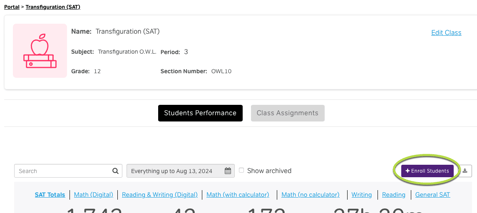
To bulk enroll students in Magoosh, log in to your teacher portal and select the class you want to enroll students in. On the class's main page, click the purple Enroll Students button.
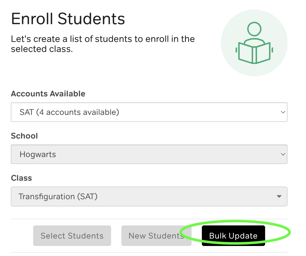
On the enrollment page, click the "Bulk Upload" button.
You will see the option to "Choose a file to upload", but we recommend downloading the file template that we've created and using that to avoid getting an error message.
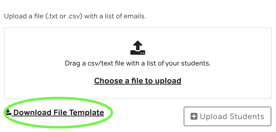
If you choose to use your own file, it must include each student's email address, first name, and last name. Note that the accepted file format is CSV.
No matter which file you use for the upload, we recommend uploading groups of no more than 50-100 students. This assists with the speed of the upload and ensures that the information is correct.
Once your file is ready with your students' information, click the Choose a file to upload link to select it. After the file appears in the list, click the Upload Students button in the bottom right.
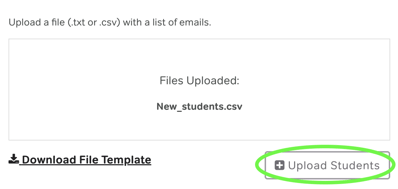
Your students will then be added to the list. Review the Students to Enroll box to confirm that all information is correct before proceeding.
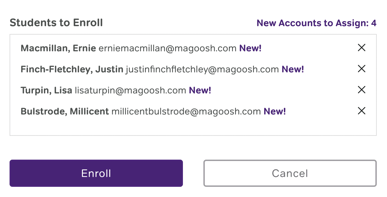
If everything is correct and you're done adding students, click the purple "Enroll" button at the bottom to update the class.
Troubleshooting: If You Get an Error Message
Error messages during bulk upload are often generic and may not pinpoint the actual problem. Try the following steps before contacting support:
- Please try again using the available template as some instructors have issues using their own files.
- Split your list into different groups to keep the count to ~50 students.
- Avoid capital letters in your email addresses
- Check for extra spaces before and/or after email addresses
If you continue to have issues, please reach out to instructorhelp@magoosh.com so we can assist you.