
You can edit student information directly from your dashboard. This includes changing email addresses, correcting names, and updating other profile details.
How to edit student information
-
Go to the Students tab
-
Find and click on the student's name
-
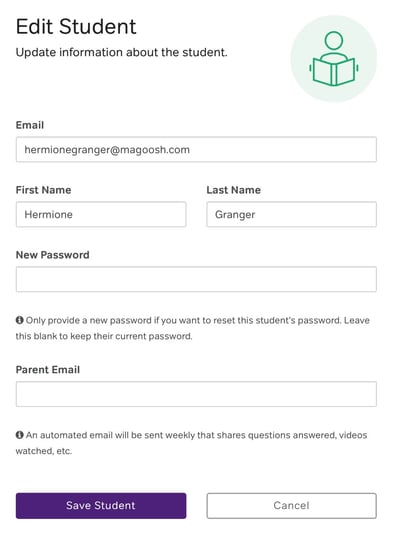
Click Edit Student
-
Update the email address, name, password or other information
-
Click Save Changes
What happens after you make changes
-
Email changes: The student will need to use their new email to sign in. Their password stays the same.
-
Name changes: The updated name appears immediately in your dashboard and reports.
-
Password changes: The student will need to use the new password to sign in.
If a student can't sign in after an email change
Have them use the "Forgot Password" link on the sign-in page with their new email address. This will send a password reset to the updated email.
Examples of when you can use this
- You used the wrong email address to enroll a student, this is where you can correct it for them
- You need to add a parent email address for ACT or SAT reports
- The student isn't getting the password reset email, here you can manually set a password and share it with them
- Correcting spelling issues with names
- Updating information for the student when things change