
There are two ways to create instructor accounts in Magoosh: (1) when creating a new class, or (2) directly from the Instructors tab (admin only). Both methods send the new instructor a welcome email with a link to set their password.
Adding Instructors When Creating a Class
-
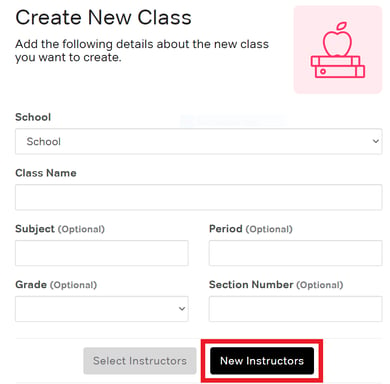
Click to create a class
-
In the instructor section, click New Instructors
- Enter the instructors email address
- Enter their first and last name
- Add as many teachers that need access to the class
- Click Add Selected Instructors and complete the class creation
Creating Instructors Directly (Admins Only)
-
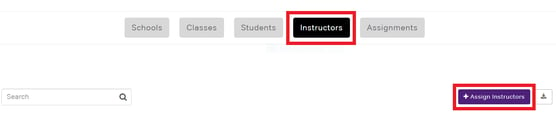
If you have admin access, click on the Instructors tab
-
Click the Assign Instructor button
-
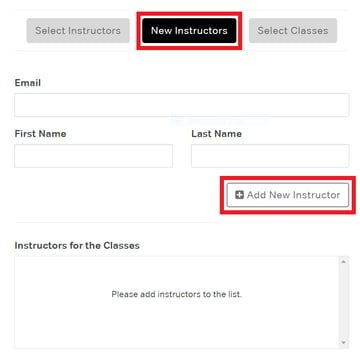
Click on New Instructor
-
Enter the email address and name of the instructor
-
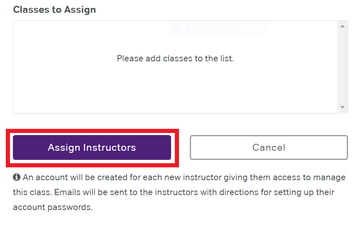
Assign them to one or more classes
-
Click Assign Instructors to complete
What New Instructors Receive
When you create an instructor account:
- They receive a welcome email with login information
- The email contains a link to set their password
- They'll have immediate access to their assigned classes
Instructor Permissions
- Instructors can manage their assigned classes and create new classes
- Admins can view all classes and create new instructors
Troubleshooting
- Instructor didn't receive welcome email
- Check spam/junk folder
- Verify the email address was entered correctly
- Have them attempt to sign in and select Forgot Password
- Can't find the Instructors tab
- This feature requires admin access
- Contact your Magoosh account representative to request admin access
- Trying to add an instructor to an existing class
- This is only a feature for admins
- Reach out to your Magoosh account representative with the teacher's name, email address, and the name of the class. We'll add them for you.