
You can set up automated weekly email updates for a parent directly in Magoosh. Once added, parents automatically receive weekly summaries of their child's questions answered, videos watched, and overall progress — keeping them informed every step of the way.
The Student or the Instructor can sign up the parent for weekly email reports.
How do students add a parent email address?
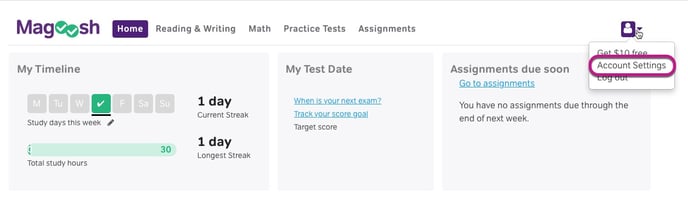
- Click on the arrow next to the person icon in the top right when logged into Magoosh.
- Click on "Account Settings"
- Scroll down to the bottom and click on "Edit Account Settings"
- Scroll past your information to the "Parent's Email" section
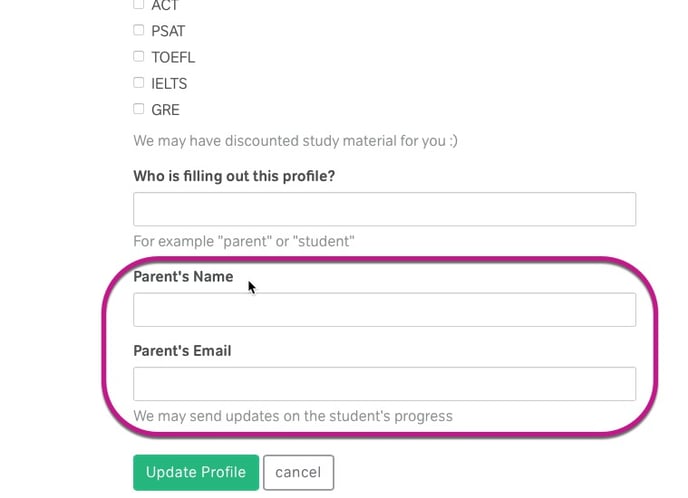
- Here you can enter a parent name and email address that you want to receive the updates.
Note: Only one email address can be entered per student. - Click on "Update Profile"
Once enrolled, parents will receive weekly emails from Magoosh sharing details about the work their student has completed and the progress they are making.
How do instructors add a parent email address?
*This option is NOT available for instructors who sync their data using Clever, ClassLink, or Schoology*
- Navigate to a student in the Educator Portal
- Click the "action button" to the right of their name to edit the student.
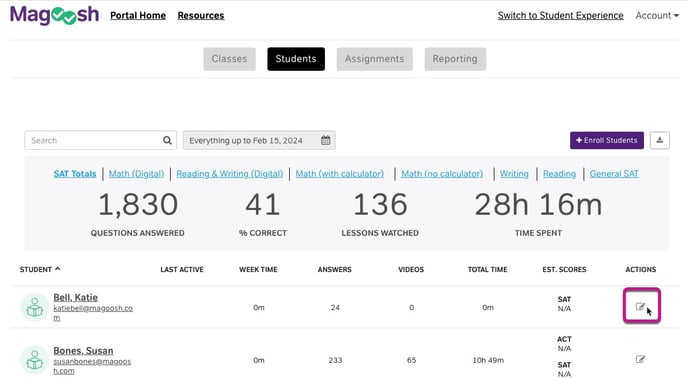
- Enter the email address of the parent you wish to receive updates
Note: Only one email address can be entered per student.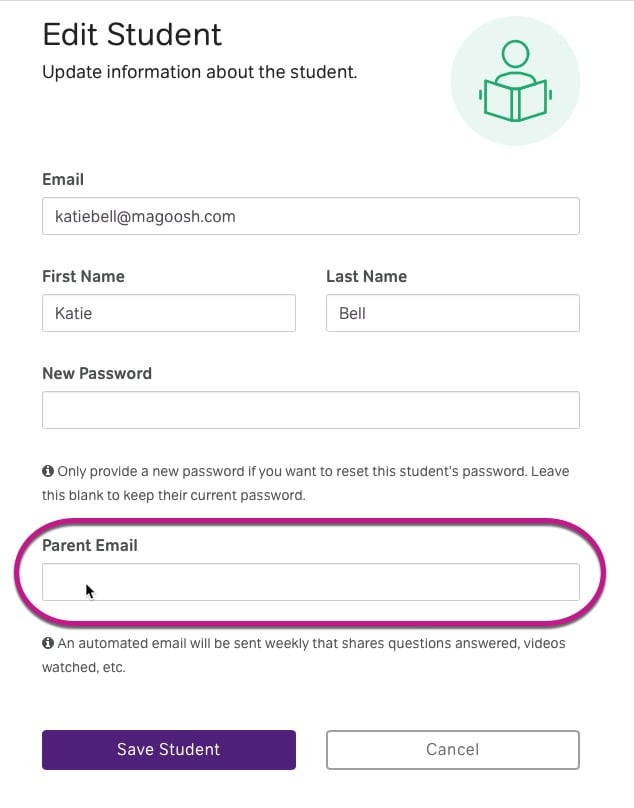
- Click "Save Student"
Once enrolled, parents will receive weekly emails from Magoosh sharing details about the work their student has completed and the progress they are making.